Software ID Guide
Every RouterOS installation has a unique Software ID — an 8-character code in the format XXXX-XXXX — that identifies that specific device to MikroTik’s licensing system. You’ll need it any time you buy a RouterOS license from us. Here’s exactly where to find it.
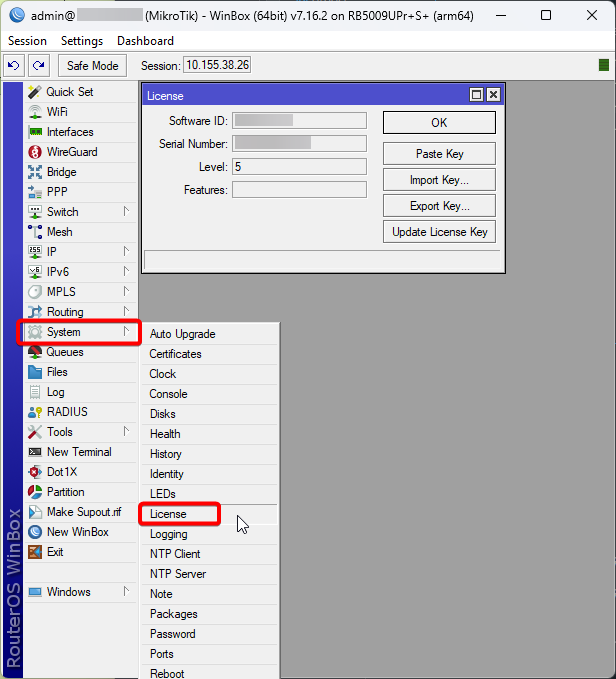
Find Your Software ID in Winbox
Open Winbox and connect to your router
Use its IP address or MAC address as usual.
Go to System > License
In the left-hand menu, open System, then click License.
Copy the Software ID field
It’s displayed at the top of the License window in the format XXXX-XXXX, next to the Serial Number and current License Level. Copy it exactly — it’s case-insensitive but every character matters.
Find Your Software ID in WebFig
Log into your router’s IP address in a browser to open WebFig, then navigate to System > License. The Software ID appears in the same format as in Winbox.
Find Your Software ID via the Terminal
Connect via SSH or the Winbox terminal and run:
/system license printThe output includes a software-id field with your device’s ID.
Find Your Software ID on a New/Unconfigured Router
A brand-new RouterBOARD device shows its Software ID on first boot via the same System > License menu — you do not need an existing license or internet connection to view it. On an x86 PC install, the Software ID is displayed right on the login screen the first time you log in.
What Happens After Checkout
Once you’ve entered your Software ID and completed payment, here’s what our team does with it.
Manual verification
We manually check your Software ID against MikroTik’s licensing records before anything is generated.
Key generation
We log in to the MikroTik licensing account and generate a key from your verified Software ID.
Why We Ask for It Before Checkout
RouterOS licenses are permanently bound to the Software ID of the device they’re issued for — not to your account or email address. Entering it correctly before you buy means your key is generated against the right device the first time, there’s no delay waiting for a support ticket to fix a mismatched ID, and you avoid the situation of a key issued against the wrong hardware.
This is also why we perform Manual License Verification on every order — our team cross-checks the Software ID you provide against MikroTik’s licensing system before a key is generated, catching typos before they become permanent.
Common Mistakes to Avoid
Mixing up the Software ID with the serial number
Copying extra spaces or characters
Using the Software ID from the wrong device
Entering the wrong Software ID after a reinstall
Got Your Software ID?
Head to the Products Hub to buy your license, or read the Buying Guide for the full purchase-to-activation walkthrough.