
How to Purchase a MikroTik RouterOS License Online in India – Complete Step-by-Step Guide
Looking to activate or upgrade your MikroTik RouterOS license? This complete guide explains how to purchase a genuine MikroTik license online from mikrotik-routeros.in, how to find your MikroTik Software ID, and how to activate your RouterOS license safely.
Whether you are an ISP, network engineer, system administrator, or home lab user, buying the correct MikroTik RouterOS license is essential for unlocking advanced networking features and improving your router performance.
What is a MikroTik RouterOS License?
MikroTik RouterOS licenses are digital activation keys used to unlock different levels of RouterOS functionality. Each license level provides different capabilities based on your networking needs.
- Level 4 License – Best for wireless CPE and small networks
- Level 5 License – Suitable for advanced wireless AP setups
- Level 6 License – Unlimited features for ISPs and enterprise networks
- CHR License – For MikroTik Cloud Hosted Router virtual machines
At mikrotik-routeros.in, you can instantly purchase genuine MikroTik licenses with secure delivery via email.
Step 1 – Find Your MikroTik Software ID
Before purchasing any MikroTik license, you need your router’s unique Software ID. The license key will permanently bind to this ID.
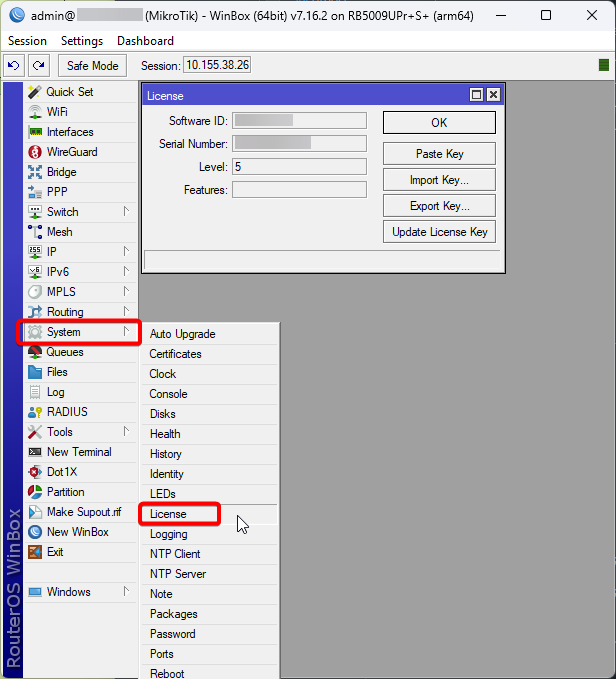
How to Find the Software ID in WinBox
- Open WinBox and connect to your MikroTik router.
- In the left menu, click System.
- Select License.
- You will see your Software ID displayed at the top.
- Example:
YT6W-XIJR - Copy this ID carefully.
Step 2 – Select the Correct MikroTik License
After copying your Software ID, visit the official MikroTik license store:
Choose the Best License for Your Network
| License Level | Recommended For |
|---|---|
| Level 4 | Home users, wireless clients, small office setups |
| Level 5 | Wireless access points and medium networks |
| Level 6 | ISPs, enterprise networks, unlimited usage |
| CHR License | Virtual servers, VMware, Proxmox, Hyper-V |
Step 3 – Add License to Cart
- Select your preferred MikroTik license.
- Click the Add to Cart button.
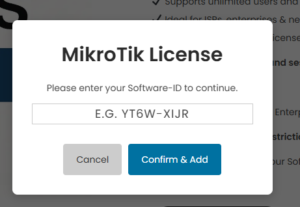
- A popup window will appear asking for your Software ID.
- Paste the Software ID you copied from WinBox.
- Verify the ID carefully.
- Click Confirm & Add.
Once a MikroTik license key is generated, it becomes permanently linked to the provided Software ID. Incorrect IDs cannot be corrected later.